Boston Photoshop Training Classes

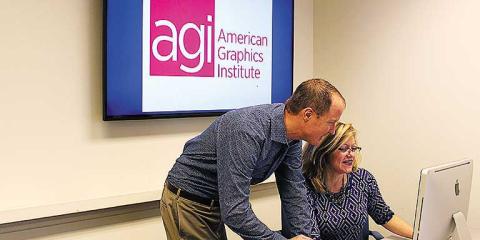
AGI has been teaching Photoshop classes in the Boston area for more than a decade. Our Boston Photoshop classes are led by experienced pros, and held in our convenient Woburn training center. When you take a Photoshop class in Boston with AGI, you benefit from our expert instructors who are also the authors of many Photoshop books, including the best-selling Photoshop Digital Classroom. AGI's Photoshop instructors are led by best-selling Photoshop author and Photoshop expert Jennifer Smith.

Choose a Photoshop class below to see outlines, pricing and dates at our Boston area training center:

Photoshop Classes

Our Photoshop classes help you understand the tools and features you need to successfully perform your work.

  • Benefit from proven methods: we have been delivering exceptional Photoshop training since 1994.
  • Learn from highly qualified Photoshop trainers who have written more than 50 best-selling books, including official Adobe curriculum.
  • Regularly scheduled Photoshop courses at our locations or private training at your office.


see dates for this class contact us about this class

Photoshop Training Class - Introduction

Photoshop Class Length - Introduction: 2 days or 4 evenings

This two-day (or 4 evenings), introductory Photoshop class is recommended for all levels of Photoshop users. In this Photoshop course you will learn how to properly use Photoshop's tools, discover how to retouch and color correct photographic images, as well as receive an introduction to professional imaging workflows. Advanced Photoshop users with no formal training will also benefit from this class as tips, tricks, keyboard shortcuts and essential foundation skills are covered throughout this class.

This course has been updated for the most current version of Photoshop, but training for previous versions of Adobe Photoshop is also available. This class is available as a regularly scheduled course at AGI’s classroom locations, or as a private or custom Photoshop course at your location or online.

This introductory Photoshop class includes a copy of the Photoshop Digital Classroom book, written by our team of expert instructors.

For more information, call 781-376-6044 to speak with a training consultant, or use our Photoshop training contact form. 

Photoshop Training Class - Introduction Course Dates

All classes start at 9:30 a.m. and end at 4:30 p.m. Eastern time.

Event Name Course Dates Location Fee Register
Photoshop Training Class - Introduction Mon, Jul 8 2013 to Tue, Jul 9 2013 Online Training $285.00
Photoshop Training Class - Introduction Wed, Jul 10 2013 to Thu, Jul 11 2013 AGI Training New York City $285.00
Photoshop Training Class - Introduction Wed, Jul 17 2013 to Thu, Jul 18 2013 AGI Training Philadelphia $285.00
Photoshop Training Class - Introduction Mon, Jul 29 2013 to Tue, Jul 30 2013 AGI Training Boston $285.00
Photoshop Training Class - Introduction Wed, Aug 14 2013 to Thu, Aug 15 2013 AGI Training Boston $395.00
Photoshop Training Class - Introduction Wed, Aug 14 2013 to Thu, Aug 15 2013 AGI Training New York City $395.00
Photoshop Training Class - Introduction Wed, Aug 14 2013 to Thu, Aug 15 2013 AGI Training Philadelphia $395.00
Photoshop Training Class - Introduction Wed, Aug 21 2013 to Thu, Aug 22 2013 Online Training $395.00
Photoshop Training Class - Introduction Wed, Sep 11 2013 to Thu, Sep 12 2013 AGI Training Philadelphia $395.00
Photoshop Training Class - Introduction Wed, Sep 11 2013 to Thu, Sep 12 2013 AGI Training Boston $395.00
Photoshop Training Class - Introduction Wed, Sep 11 2013 to Thu, Sep 12 2013 AGI Training New York City $395.00
Photoshop Training Class - Introduction Wed, Sep 18 2013 to Thu, Sep 19 2013 Online Training $395.00

Introduction to  Photoshop Training Class: Course Topics

Module 1: Exploring Photoshop

  • Experimenting with new vector capabilities
  • Filling a vector shape with a pattern
  • Adding a mask to a vector layer
  • Using the new brush tips
  • Saving a new Brush
  • Adding strokes to vector images
  • Cloning a vector image
  • Adding text layers from another document
  • Updating text styles
  • Cropping an image

Module 2: Getting to Know the Photoshop Workspace

  • Opening an existing file in Mini Bridge
  • Discovering the Tools panel
  • Accessing tools and their options
  • Using panels
  • Hidden tools
  • Navigating the image area
  • Using the Zoom tool
  • Using the Hand tool
  • Working with tabbed windows
  • Maximizing productivity with screen modes

Module 3: Taking Advantage of Adobe Bridge

  • Introducing Adobe Bridge
  • Navigating through the Bridge
  • Using folders in Adobe Bridge
  • Making a Favorite
  • Creating and locating metadata
  • Using the Filter panel
  • Saving a Collection
  • Automation tools in Adobe Bridge
  • Additional Photoshop tools
  • Changing the view

Module 4: Photoshop Basics

  • Opening an existing document
  • Understanding document settings
  • Viewing an image’s size and resolution
  • Combining images by copying and/or dragging
  • Transforming and editing combined images
  • Removing a background
  • Understanding the stacking order of layers
  • Refining edges of copied images
  • Choosing a file format
  • Saving for print and web use

Module 5: Making the Best Selections in Photoshop

  • Understanding the importance of selections
  • Using the Marquee tools
  • Working with the Magic Wand tool
  • Selecting with the Lasso tool
  • Adding to and subtracting from selections
  • Saving selections
  • Using the Quick Selection tool
  • Fine-tuning selections with Refine Edge
  • Using Quick Mask
  • Selecting with the Pen tool

Module 6: Painting and Retouching

  • Setting up your color settings
  • Comparing RGB and CMYK modes
  • Using the Color panel
  • Changing Brush settings
  • Applying color to an image
  • Changing blending modes
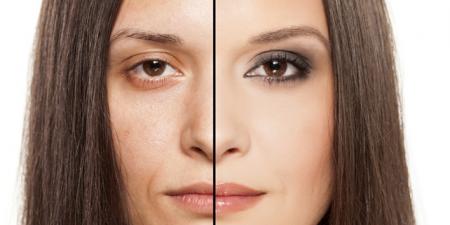
  • Retouching images
  • Moving through the History panel
  • Using the Clone Stamp and Healing tools
  • Working with Camera Raw

Module 7: Creating a Good Image with Photoshop

  • Choosing your color settings
  • Working in RGB
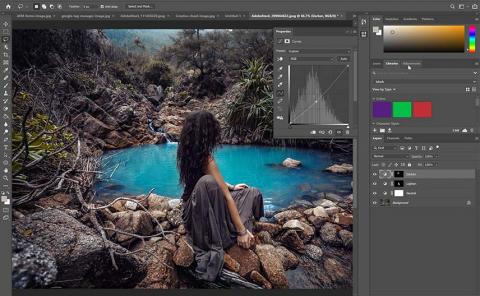
  • Reading a histogram
  • Adding video
  • Making a Curve adjustment
  • Defining the highlight and shadow
  • Adjusting the midtones
  • Setting the neutral
  • Sharpening your image
  • Taking care of red eye

Module 8: An Introduction to Photoshop Layers

  • Discovering layers
  • Getting a handle on layers
  • Creating a new blank file
  • Naming your layer
  • Selecting layers
  • Moving layers
  • Changing the visibility of a layer
  • Locking a layer
  • Using masks in a layer
  • Preserving transparency

Prerequisites for the Introduction to Photoshop Course

We recommend that you have the Adobe Photoshop application before starting the class. You can purchase the software or obtain a trial version from the Adobe website.

Course Materials for the Introduction to Photoshop Class

You will receive a copy of the full-color Photoshop Digital Classroom book and DVD created by the Adobe Certified Instructors at AGI. AGI instructors have created many of the official Photoshop training guides and books for Adobe Systems. This best-selling book is widely used around the world to teach Photoshop, and you learn directly from the authors when you take a class at American Graphics Institute.

AVAILABLE DELIVERY METHODS FOR THIS CLASS

Classroom Training Icon Live Online Icon Private Training Icon My Location Icon On-Demand Training Icon
CLASSROOM LIVE ONLINE PRIVATE MY LOCATION ON-DEMAND


see dates for this class contact us about this class

Photoshop Training Class - Intermediate

Intermediate Photoshop Training Class Length: 2 days

In this intermediate Photoshop class, build on the information covered in the introductory course to produce complex selections and paths. Discover creative uses for Photoshop filters, and learn how to take advantage of adjustment layers. Adobe Photoshop automation features are covered, as well as speeding up production tasks with automation and buttons. This class requires knowledge of all topics covered in the introduction to Photoshop class.

This Photoshop class has been updated for the most current version of Photoshop, but training for previous versions is also available. It is available as a regularly scheduled course at AGI’s classroom locations as a private or custom class at your location, or as an online class.

This intermeditae Photoshop class includes a copy of the Photoshop Digital Classroom book, written by our team of expert instructors.

For more information, call 781-376-6044 to speak with a training consultant, or use our Photoshop training contact form. 

Photoshop Training Class - Intermediate Course Dates

All classes start at 9:30 a.m. and end at 4:30 p.m. Eastern time.

Event Name Course Dates Location Fee Register
Photoshop Training Class - Intermediate Mon, Jul 22 2013 to Tue, Jul 23 2013 Online Training $695.00
Photoshop Training Class - Intermediate Mon, Jul 22 2013 to Tue, Jul 23 2013 AGI Training Philadelphia $695.00
Photoshop Training Class - Intermediate Mon, Jul 22 2013 to Tue, Jul 23 2013 AGI Training Boston $695.00
Photoshop Training Class - Intermediate Mon, Aug 19 2013 to Tue, Aug 20 2013 AGI Training New York City $695.00
Photoshop Training Class - Intermediate Mon, Aug 19 2013 to Tue, Aug 20 2013 AGI Training Philadelphia $695.00
Photoshop Training Class - Intermediate Mon, Aug 19 2013 to Tue, Aug 20 2013 AGI Training Boston $695.00
Photoshop Training Class - Intermediate Mon, Aug 19 2013 to Tue, Aug 20 2013 Online Training $695.00
Photoshop Training Class - Intermediate Mon, Sep 23 2013 to Tue, Sep 24 2013 Online Training $695.00
Photoshop Training Class - Intermediate Mon, Sep 23 2013 to Tue, Sep 24 2013 AGI Training Philadelphia $695.00
Photoshop Training Class - Intermediate Mon, Sep 23 2013 to Tue, Sep 24 2013 AGI Training New York City $695.00
Photoshop Training Class - Intermediate Mon, Sep 23 2013 to Tue, Sep 24 2013 AGI Training Boston $695.00

Intermediate Photoshop Training Class: Course Topics

Module 1: Getting To Know Photoshop Layers

  • Creating a composition
  • Moving images in from other documents
  • Creating and editing a layer mask
  • Cloning layers
  • Aligning and distributing layers
  • Applying filters to layers
  • Creating a type layer
  • Applying a layer style
  • Creating a clipping mask
  • Trying out the new Filter for Layers panel

Module 2: Taking Layers to the Max

  • Using adjustment layers
  • Refining adjustment layer masks
  • Adjusting a Hue/Saturation layer
  • Adding a pattern fill layer
  • Using the Black & White adjustment layer
  • Adding a tint
  • Applying a gradient to an adjustment layer
  • Adding and editing layer styles
  • Saving a style
  • Accessing a style

Module 3: Getting Smart in Photoshop

  • Creating a composition using Smart Objects
  • Opening an image as a Smart Object
  • Converting a layer to a Smart Object
  • Placing a Smart Object
  • Editing a Smart Object
  • Editing the contents of a Smart Object
  • Modifying multiple Smart Object layers
  • Replacing the contents of a Smart Object layer
  • Working with Smart Filters
  • Modifying a Smart Filter

Module 4: Using Photoshop Filters

  • Understanding filter basics
  • Starting to use filters
  • Fading your filter
  • Using the Filter Gallery
  • Applying a Smart Filter
  • Enabling and disabling effects
  • Using a filter effects mask
  • Using the Vanishing Point filter
  • Building your own perspective planes
  • Building an attached plane

Module 5: Creating Images for Web and Video

  • Creating a web page
  • Adding text
  • Applying style to the text
  • Adding text for hyperlinks
  • Creating, selecting and combining slices
  • Using Save for Web
  • Optimizing image slices
  • Saving files for video
  • Creating animation
  • Saving an animated GIF

Module 6: Introducing 3D in Photoshop

  • Creating a 3D object
  • Locating GPU/Open GL preferences
  • Getting an image ready for 3D
  • Wrapping and positioning a 3D object
  • Adjusting materials and lighting
  • Working with light sources
  • Animating a 3D object
  • Creating 3D text
  • Rendering and rasterizing 3D images
  • Exporting a 3D image

Module 7: Photoshop New Features

  • Mercury Graphics Engine
  • New look and feel
  • New brush tips
  • Content-aware tools
  • Content-Aware Move tool
  • Strokes and fills
  • Layers panel improvements
  • More options for creating patterns
  • New and improved 3D features
  • Open GL requirements


Intermediate Photoshop Training Class: Prerequisites

We recommend that you have the Adobe Photoshop application before starting the class. You can purchase it or obtain a trial version from the Adobe website.

Course Materials for the Introduction to Photoshop Class


You will receive a copy of the full-color Photoshop Digital Classroom book and DVD created by the Adobe Certified Instructors at AGI. AGI instructors have created many of the official Photoshop training guides and books for Adobe Systems. This best-selling book is widely used around the world to teach Photoshop, and you learn directly from the authors when you take a class at American Graphics Institute.

AVAILABLE DELIVERY METHODS FOR THIS CLASS

Classroom Training Icon Live Online Icon Private Training Icon My Location Icon On-Demand Training Icon
CLASSROOM LIVE ONLINE PRIVATE MY LOCATION ON-DEMAND


see dates for this class contact us about this class

Photoshop Training Class - Advanced

Advanced Photoshop Training Class Length: 2 days

This two-day advanced Photoshop class is for power users. In this class, you will learn how to create complex composites with text and layer effects. Seamless integration of effects and colors for realistic images is covered, along with many advanced tips that are helpful for even the most experienced users.

This Photoshop course has been updated for the most current Photoshop version, but training for previous versions is also available. Available as a regularly scheduled class at AGI’s classroom location or as a private or custom class at your location.

This Adobe Photoshop training class is delivered by the instructors who wrote the Adobe Photoshop Digital Classroom, so you learn from experts and instructors when you take an Adobe Photoshop class with AGI.

For more information, call 781-376-6044 to speak with a training consultant, or use our Photoshop training contact form. 

Photoshop Training Class - Advanced Course Dates

All classes start at 9:30 a.m. and end at 4:30 p.m. Eastern time.

Event Name Course Dates Location Fee Register
Photoshop Training Class - Advanced Wed, Jun 26 2013 to Thu, Jun 27 2013 Online Training $695.00
Photoshop Training Class - Advanced Wed, Jun 26 2013 to Thu, Jun 27 2013 AGI Training New York City $695.00
Photoshop Training Class - Advanced Mon, Jul 29 2013 to Tue, Jul 30 2013 Online Training $695.00
Photoshop Training Class - Advanced Mon, Jul 29 2013 to Tue, Jul 30 2013 AGI Training New York City $695.00
Photoshop Training Class - Advanced Mon, Jul 29 2013 to Tue, Jul 30 2013 AGI Training Philadelphia $695.00
Photoshop Training Class - Advanced Mon, Jul 29 2013 to Tue, Jul 30 2013 AGI Training Boston $695.00
Photoshop Training Class - Advanced Thu, Aug 22 2013 to Fri, Aug 23 2013 AGI Training Philadelphia $695.00
Photoshop Training Class - Advanced Mon, Aug 26 2013 to Tue, Aug 27 2013 AGI Training New York City $695.00
Photoshop Training Class - Advanced Mon, Aug 26 2013 to Tue, Aug 27 2013 Online Training $695.00
Photoshop Training Class - Advanced Mon, Aug 26 2013 to Tue, Aug 27 2013 AGI Training Boston $695.00

Advanced Photoshop Training Class: Course Topics

Module 1: Creating Realistic Selections in Photoshop

  • Painting accurate and realistic selections
  • Refining edges to include hair and fur
  • Mastering the Pen tool
  • Locking transparency
  • Selecting and replacing color
  • Using the Color Replacement tool

Module 2: Transformation and Distortion

  • Using Free Transform
  • Stepping and repeating
  • Using warps in your compositions
  • Cloning in perspective

Module 3: Photoshop Masking and Adjustments

  • Maximizing the use of layer masks
  • Smoothing edges
  • Auto masking
  • Taking advantage of shadows and highlights
  • Advanced Curves tips and tricks
  • Selective Hue and Saturation
  • Multi-layer enhancement
  • Advanced use of filters and masks
  • Advanced retouching using content-aware features

Module 4: Composition and Perspective

  • Creating a photomontage
  • Composition tips and tricks
  • Getting into perspective
  • Introducing vanishing points
  • Two- vs. Three-point perspective
  • Correcting perspective
  • Cropping in perspective

Module 5: Light and Shade

  • Creating complex and realistic shadows
  • Mood, light and emphasis
  • Creating visible light sources
  • Shading using Dodge and Burn
  • Shading using light modes
  • Extreme shading
  • Smoke, fire and neon

Module 6: Combining Body Parts

  • Complex head fitting
  • Hair rendering techniques
  • The aging process
  • Changing clothing
  • Changing expression
  • Cosmetic makeover
  • Coloring black and white
  • Changing skin tone

Module 7: Creating Surfaces

  • Shiny surfaces
  • Wrapping in plastic
  • Water, snow, ice and rain
  • Glass: Refraction and reflection
  • Distortion with backgrounds
  • Metal, wood and stone
  • Curves, adjustment layers, and layer styles
  • Using lighting effects
  • Photographing shiny objects
  • Varnishing wood
  • Recycling old wood
  • Bringing statues to life
  • Carving words in stone
  • Paper and fabric
  • Folding and wrinkles
  • Ripping and tearing

Module 8: Using Photoshop 3D Capabilities

  • Adding depth
  • Matching existing perspective
  • Using displacement maps
  • Working with 3D layers
  • Blurring techniques
  • Breaking and smashing
  • Creating magical realism


Prerequisites for this  Advanced Photoshop Class: 

We recommend that you have the Adobe Photoshop application before starting the class. You can purchase the software or obtain a trial version from the Adobe web site.

Advanced Photoshop Course Materials

You will receive a comprehensive course manual developed by the Adobe Certified Instructors at AGI. AGI instructors have created many of the official Photoshop training guides and books for Adobe Systems, and are the authors of many Photoshop training books.

AVAILABLE DELIVERY METHODS FOR THIS CLASS

Classroom Training Icon Live Online Icon Private Training Icon My Location Icon On-Demand Training Icon
CLASSROOM LIVE ONLINE PRIVATE MY LOCATION ON-DEMAND


see dates for this class contact us about this class

Photoshop Training Class - Web Graphics

Photoshop for Web Graphics Class Length: 1 day

This class is for designers who want graphics to create web pages with impactful web graphics. In this one-day class you discover the steps to creating web graphics using Adobe Photoshop. Learn about file formats, color tables, animations and the creation of interesting special effects such as rollovers and tweening. Instructed by an Adobe Certified Expert and Adobe Certified Instructor for Photoshop. This training class includes coverage of new features added in Photoshop CS6.

This Web Graphics training class is available as a regularly scheduled class at AGI’s classroom location, as a private or custom Web Graphics class at your location, or as an online class.

This Web Graphics training class is delivered by the instructors who write the Digital Classroom series of books, so you learn from Photoshop experts and instructors when you take a training class with AGI.

Photoshop Training Class - Web Graphics Course Dates

All classes start at 9:30 a.m. and end at 4:30 p.m. Eastern time.

Event Name Course Dates Location Fee Register
Photoshop Training Class - Web Graphics Fri, Aug 2 2013 AGI Training Philadelphia $395.00
Photoshop Training Class - Web Graphics Fri, Aug 2 2013 Online Training $395.00
Photoshop Training Class - Web Graphics Fri, Aug 2 2013 AGI Training Boston $395.00
Photoshop Training Class - Web Graphics Fri, Aug 2 2013 AGI Training New York City $395.00

Adobe Photoshop Training Class for Web Graphics: Course Topics

Module 1: Basics of Web Page Design

  • Designing web pages with Photoshop
  • Important tips for naming files
  • Image size

Module 2: Image File Size

  • Photoshop resize wizard
  • Manually resize
  • Fit image
  • Building a resize action

Module 3: Web File Formats

  • Overview of file formats: JPG, GIF, PNG

Module 4: The JPEG format

  • Saving a JPG
  • Using the matting feature for JPEG

Module 5: The GIF format

  • General information about GIFs
  • Exporting a GIF
  • Lossy
  • Color reduction algorithm
  • Dithering
  • Matting
  • Transparency
  • Interlaced
  • Web Snap
  • Modifying the color table
  • Locking colors in the color table
  • Saving Custom color tables

Module 6: The PNG Format

  • PNG-8 vs PNG-24
  • Transparency

Module 7: Photoshop production tips

  • Zooming
  • Guides & grids
  • Taking advantage of the Info panel
  • Using the transform features

Module 8: Color on the web

  • Hexadecimal system
  • Color picker for HTML
  • Converting Pantone colors for web use
  • Using Color panel for Hexadecimal colors
  • Using Color Picker
  • Using and creating custom swatches
  • Locking colors in the color table

Module 9: Using type on the web

  • Overview of text on the web
  • Anti-aliasing
  • Layer styles for type
  • Saving styles
  • Converting text to vector

Module 10: Selection tools

  • Marquee tool
  • Selection tips and tricks
  • Feathering
  • Lasso
  • Polygon Lasso tool
  • Magic Wand
  • Magic Eraser
  • Using the Refine Edge feature

Module 11: Taking advantage of layers

  • Aligning and distributing layers
  • Moving layers to other documents
  • Layer sets
  • Using Adjustment layers to change color
  • Building a background
  • Creating a pattern

Module 12: Layer masks

  • Creating masks
  • Painting and editing masks

Module 13: Actions

  • Saving tasks
  • Building a droplet
  • Saving optimization settings
  • Creating droplets from settings

Module 14: Filters that improve your web imagery

  • Using Smart filters
  • Unsharp mask

Module 15: Slicing in Adobe Photoshop

  • Using the Slice panel
  • Creating slices with guides
  • Creating slices with the Slice tool
  • Managing slices
  • Saving slice selections
  • Alt tags
  • Updating XHTML files
  • Exporting slices as CSS
  • Export options for CSS
  • Customizing code generated from Photoshop

Module 16: Creating special effects

  • Layer styles
  • Using layer styles
  • Creating and saving custom layer styles

Module 17: Creating animations

  • Frame-based animation
  • Timeline-based animation
  • Using layers in animations
  • Importing images as frames
  • Optimizing an animation
  • Animation frame shortcuts
  • Timeline-based animation

Module 18: Creating imagemaps

  • Tool-based imagemap
  • Layer-based imagemap


Adobe Photoshop Training Class for Web Graphics: Prerequisites

We recommend that you have the Adobe Photoshop software before starting the class. You can purchase the software or obtain a trial version of it from the Adobe web site.

Adobe Photoshop Training Class for Web Graphics: Course Materials

You will receive a comprehensive course manual for this class developed by the Adobe Certified Instructors at AGI. AGI instructors that have created many of the official Photoshop training guides and books for Adobe Systems.

AVAILABLE DELIVERY METHODS FOR THIS CLASS

Classroom Training Icon Live Online Icon Private Training Icon My Location Icon On-Demand Training Icon
CLASSROOM LIVE ONLINE PRIVATE MY LOCATION ON-DEMAND


see dates for this class contact us about this class

Photoshop Masking and Selection Techniques Training Class

Discover effective and easy ways to create masks in Photoshop. Learn tips to improve your selections, advanced masking techniques, working with channels, layer masks, and clipping groups.

Questions about this Photoshop Masking and Selection Techniques class? Interested in a private or customized Photoshop training? Call to speak with a training consultant: 781-376-6044.


Please call (800)-851-9237 to schedule this training course.

Contact AGI to request course dates.

Photoshop Masking and Selection Techniques Training Class Topics Covered

  • Building the best selection
  • Understanding masks
  • Painting masks
  • Refining masks
  • Creating vector masks
  • Saving and Re-using Masks

We recommend that you have Photoshop installed and have a solid understanding of all topics covered in our introductory Photoshop class before starting this course.

You will receive a comprehensive course manual for this class developed by the Adobe Certified Instructors at AGI. AGI instructors have created many of the official training guides and books for Adobe Systems.

AVAILABLE DELIVERY METHODS FOR THIS CLASS

Classroom Training Icon Live Online Icon Private Training Icon My Location Icon On-Demand Training Icon
CLASSROOM LIVE ONLINE PRIVATE MY LOCATION ON-DEMAND


see dates for this class contact us about this class

Photoshop Color Correction Training Course

Discover Photoshop's tools for color correction including curves, adjustment layers, and the info panel, and how to use them. Find out how to make healthy skin tones, create balanced images, and create professional quality color using a few simple steps. After attending this session you’ll find that your images will look incredible using easy-to-master color correction techniques.

Questions about this Photoshop Color Correction class? Interested in a private or customized Photoshop training? Call to speak with a Photoshop training consultant: 781-376-6044.


Please call (800)-851-9237 to schedule this training course.

Contact AGI to request course dates.

Photoshop Color Correction Training Course Topics Covered

  • Color theory basics
  • Setting up Color Settings
  • Understanding highlights and shadows
  • Balancing neutrals
  • Correcting skin tone
  • Adjusting midtones
  • Understanding the Curves panel 

You should have basic computer knowledge for this class, and be familiar with Photoshop' workspace, and have working knowledge of all the topics covered in our Introduction to Photoshop course.

We recommend that you have the Photoshop application before starting this class.

You will receive a comprehensive Photoshop course manual for this class developed by the Adobe Certified Instructors at AGI. AGI instructors have created many of the official training guides and books for Adobe Systems.

AVAILABLE DELIVERY METHODS FOR THIS CLASS

Classroom Training Icon Live Online Icon Private Training Icon My Location Icon On-Demand Training Icon
CLASSROOM LIVE ONLINE PRIVATE MY LOCATION ON-DEMAND


see dates for this class contact us about this class

Photoshop Te​xt Effects Training Class

In this half-day Photoshop class, you will discover how to create fantastic effects for your text using Photoshop and Illustrator. Whether you create advertisements, publications, banners, posters, or web graphics – this session will show you how to make your text stand-out and get noticed.

Questions about this class? Interested in a private or customized training? Call to speak with a training consultant: 781-376-6044.


Please call (800)-851-9237 to schedule this training course.

Contact AGI to request course dates.

We recommend that you have the Photoshop application installed before starting this class.

You will receive a comprehensive course manual for this class developed by the Adobe Certified Instructors at AGI. AGI instructors have created many of the official training guides and books for Adobe Systems, and are the authors of the Photoshop Digital Classroom along with the Adobe Creative Suite for Dummies books.

AVAILABLE DELIVERY METHODS FOR THIS CLASS

Classroom Training Icon Live Online Icon Private Training Icon My Location Icon On-Demand Training Icon
CLASSROOM LIVE ONLINE PRIVATE MY LOCATION ON-DEMAND


see dates for this class contact us about this class

Photoshop Training Class - Introduction

see dates for this class contact us about this class

Photoshop Training Class - Introduction

This Photoshop course helps you to be more productive and to create higher quality images more efficiently. You receive an introduction to editing, retouching, and enhancing images. Learn essential skills including how to make selective changes, color correct, and retouch your images.

see dates for this class contact us about this class

Photoshop Training Class - Intermediate

see dates for this class contact us about this class

Photoshop Training Class - Intermediate

This intermediate Photoshop training class covers the intermediate use of tools, filters, and layers, that allow you to take advantage of creative effects. You also discover how to use automation features, such as actions and buttons, as well as smart objects.

see dates for this class contact us about this class

Photoshop Training Class - Advanced

see dates for this class contact us about this class

Photoshop Training Class - Advanced

This advanced Photoshop class is for users who have already accomplished basic masking and retouching tasks in Photoshop. In this course attendees learn how to create complex composites, work at an advanced level with color correction, and build incredible masks.

see dates for this class contact us about this class

Photoshop Training Class - Web Graphics

see dates for this class contact us about this class

Photoshop Training Class - Web Graphics

In this Photoshop training class for web graphics you'll discover how to quickly and easily create images for the Web, HTML email, and mobile use. This class covers file formats, image optimization, and creating effective web graphics with impact.

see dates for this class contact us about this class

Photoshop Te​xt Effects Training Class

see dates for this class contact us about this class

Photoshop Te​xt Effects Training Class

Discover how to create exciting text effects in Photoshop with this half-day Photoshop course. Learn how to utilize effects and text controls to make great looking text using Photoshop.

see dates for this class contact us about this class

Photoshop Color Correction Training Course

see dates for this class contact us about this class

Photoshop Color Correction Training Course

In this Photoshop color correction training course you'll discover how to use Photoshop's extensive array of color correction tools. You'll discover how to create healthy looking skin tones, balance images, and create overall professional-quality color.

see dates for this class contact us about this class

Photoshop Masking and Selection Techniques Training Class

see dates for this class contact us about this class

Photoshop Masking and Selection Techniques Training Class

Creating effective selections and masks is an essential Photoshop skill. Without training you may be spending hours on work that can be done in minutes. In this Photoshop Masking and Selection Techniques course, you'll discover effective techniques that make quick-work of masking, allowing you to retouch, composite, and adjust the most intricate items in your images.

AGI Training Boston

AGI Training Boston
120 Presidential Way, Suite 310
Woburn
MA
01801
800-851-9237

On-demand Photoshop Training

Online, on-demand Photoshop training is available at www.DigitalClassroom.com and you can access it anytime, from your tablet, laptop, Mac, or PC. Learn Photoshop the way you want, when you want with comprehensive on-demand video training, books, tutorials, and lesson files.

Boston area Photoshop class location:

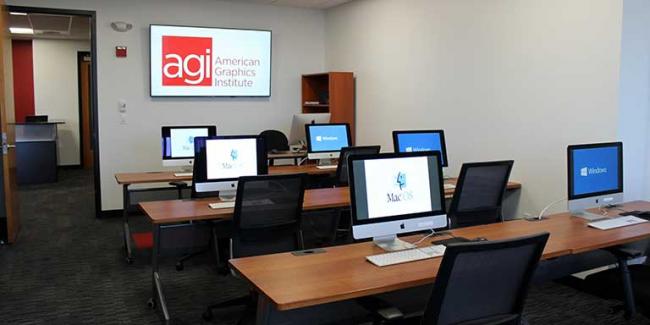
Our Photoshop classes in the Boston area are held in our Woburn training center located at

120 Presidential Way, Suite 310
Woburn, MA 01801-1072
(800) 851-9237

AGI also offers private, onsite Photoshop training in the Boston area, which can occur at your office. For details complete a custom Photoshop training request form.

Flying into Boston for your Photoshop class

Clients attending a Photoshop class in Boston who are visiting from outside the area can fly into Boston Logan airport or the Boston-Manchester airport in New Hampshire. Other flight options include Bradley International in Hartford, CT or the T.F. Green airport in Warwick, RI, however both of these airports are approximately 90-120 minutes driving distance from our offices. There is regularly scheduled bus service from Boston-Logan Airport to the Woburn Anderson Regional Transportation Center, which is a short walk or easy cab ride from our office and several area hotels.

Taking the train into Boston for your Photoshop class

Take the Anderson/Woburn stop on the MBTA Commuter Rail Lowell Line, with service to and from North Station in Boston. AGI Training’s office is approximately a 5 minute walk or a short taxi ride from the Woburn Anderson Regional Transportation Center - making it easy for you to take the train to your Photoshop class.

Taking the bus into Boston for your Photoshop class

The Logan Express bus service runs from Boston Logan International Airport to the Woburn Anderson Regional Transportation center located in Woburn, MA. AGI Training’s office is approximately a 5 minute walk or a short taxi ride from the Anderson Regional Transportation center.

Driving directions for your Photoshop class from Interstate 93

Take exit 37C and turn right  at the first traffic signal. AGI Training is less than one quarter mile on the right side at 120 Presidential Way.

Driving directions for your Photoshop class from Interstate 95

Take Interstate 95 to Interstate 93 north to the first exit, 37C, then follow the directions above. This is the easiest way to reach our office.

Alternatively, if there is traffic at the 93/95 intersection, you can take the Washington Street exit. When traveling south (from the north) on Interstate 95, exit at the first exit past the 93/95 interchange, proceed straight through the light at the end of the ramp. After approximately 1 mile Commerce Way becomes Presidential Way. AGI Training is located at 120 Presidential Way. If traveling from the south (traveling north), at the Washington Street exit turn left, cross over 95 and take the first left turn. At the next intersection turn right onto Commerce Way. After approximately 1 mile Commerce Way becomes Presidential Way. AGI Training is located at 120 Presidential Way.

Staying overnight in Boston for your Photoshop class

See Hotel Suggestions near our Boston training center where we hold our regularly scheduled Photoshop classes.

AGI's team of experienced instructors are led by the design and usability expert and best-selling author of more than 20 books including Creative Cloud for Dummies, Creative Suite for Dummies, and Photoshop Digital Classroom. Classes are led by experienced professionals who have extensive professional and training experience.