

Need help choosing the right Photoshop classes? Call us:
Boston: 781-376-6044
Philadelphia: 610-228-0951
Toll Free: 800-851-9237
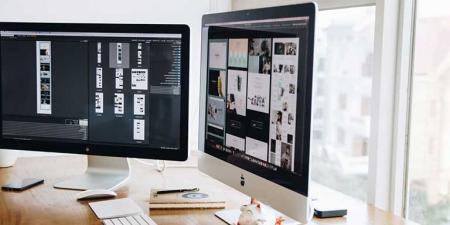
Hands-on Photoshop classes and Photoshop training using Mac or Windows computers with a live instructor in the same classroom.
Reviews of our Photoshop classes

Photoshop classes rating:
5 stars from 266 reviewers
"Kevin was great about applying the course to what I needed to know about Photoshop. Each lesson was beneficial to me and was clearly taught. He is clearly very knowledgeable when it comes to design and Photoshop. The class went by quickly but I did not feel overwhelmed with material. I am glad that is was hands on because it was helpful to practice each lesson as we covered new material." - Heather S
See all reviews for Photoshop classesAll Photoshop classes include
 Free retake
 Detailed curriculum
 Live instructor
 Flexible rescheduling
 Certificate of Completion
 Small class sizes
 Course recording
Photoshop training classes led by
the authors of the best-selling book:
Photoshop Digital Classroom.
Photoshop certification test online
Upon completion of a Photoshop course you are well qualified to take the Photoshop Certification test online, which provides an independent assessment of your Photoshop skills. Before taking the Photoshop test, review the Photoshop exam objectives.
Additional Photoshop training resources
AGI also provides free Photoshop training online tutorials in addition to Photoshop classes. This includes foundational tutorials such as how to navigate the Photoshop image area. You can also read recent Photoshop Training News.
Choosing the right Photoshop class
Not sure which Photoshop course is right for you? Contact AGI for guidance or take our free online Photoshop skills assessment.
Photoshop training
Photoshop classes provide training for Photoshop CC (Creative Cloud), covering the latest version.
Photoshop training classes GSA
American Graphics Institute offers Photoshop Classes under GSA contract 47QTCA19D003Y. As a GSA contract holder, Photoshop training GSA pricing for federal agencies is available for private and public Photoshop workshops. Contact an American Graphics Institute representative for additional information or to register.
Night and weekend Photoshop courses
In addition to our many weekday classes, American Graphics Institute also offers weekend and night Photoshop courses. These options are listed within the course schedules listed above, or contact AGI for upcoming night and weekend dates.
What you'll learn with Photoshop classes
Participants in Adobe Photoshop classes learn skills for preparing and editing images. Photoshop courses are available for beginners and experienced users. Learn to use Photoshop to retouch images, create special effects, correct color, combine images, and share images online and in print.
Beginner Photoshop classes
In beginner Photoshop courses, participants learn to understand the Photoshop interface and to create high-quality images through editing and retouching. Learn the essentials for color balancing an image, defining the range, applying edits, removing unwanted items, and combining images for artistic effects. Learn to use Photoshop’s many capabilities for editing, enhancing, and creative effects. Participants learn the basics of Photoshop layers, brushes, and effects, as well as options for sharing and exporting files.
Intermediate Photoshop courses
In the intermediate Photoshop class, participants learn to master the capabilities of layers and creative filters and create complex selections to isolate work within an image. The course also covers Photoshop automation capabilities to work more efficiently and make it possible to handle repeated actions with ease. More advanced use of tools, including content-aware tools, are also covered along with commonly requested functions such as removing backgrounds and creating interactive images for sharing online.
Advanced Photoshop courses
The advanced Photoshop classes teach techniques for working with complex composite images and using effects with layers and text. Participants also learn to navigate the workspace more efficiently through workspace customization and keyboard commands. The course also teaches enhanced masking, selection, and color correction techniques, along with applying special effects.
Corporate Photoshop training
If your company, group, or organization wants to learn Photoshop, AGI offers corporate and group classes that can be customized for your team. The course content can be from any of our existing Photoshop courses, or it can be tailored to your needs.
Private Photoshop training
If you are looking for a private Photoshop course for yourself or your group, any of our Photoshop classes can be delivered privately for individuals or groups. Complete the contact form for private Photoshop training or call 781-376-6044 to schedule a private Photoshop course for you or your group.
You can learn more about the best Photoshop classes to meet your learning objectives and budget.
Photoshop classes near me
AGI offers Photoshop classes near you with live Photoshop courses nearby and live online Photoshop classes you can join from your home or office. AGI also provides instructors who come to your location, making scheduling Photoshop training near you easy. With Photoshop training available in many cities and various options for training, classes, and workshops, AGI helps you to choose the best options for learning Photoshop that meet your location, schedule, learning preference, and budget while allowing you to receive training near you conveniently.
Why learn Photoshop?
Learning Photoshop is useful because it is the standard image editing software used by graphic designers, marketing professionals, and those in communications and design roles. Photoshop is a professional tool for image editing, whether creating images online or in print.
You should learn Photoshop if you need to create professional quality images, including images used in:
Websites
Flyers
Brochures
Catalogs
Newsletters
Marketing Collateral
Newspapers
Magazines
Books
Photoshop creates professional-quality images. It can be used and purchased on its own or integrated with InDesign and Illustrator, which are part of the Adobe Creative Cloud.
Learn more about why you should learn Photoshop.
Learn Photoshop for a new career
Learning Photoshop can be a starting point for a design career, although Photoshop skills are only one part of what is needed for a career. Design careers require a well-rounded set of skills, including an understanding of graphic design principles along with related Creative Cloud skills such as Photoshop and Illustrator. Marketing and communications roles that use Photoshop will also require skills in communications and analytics as well.
Careers that use Photoshop
Many jobs and careers use Photoshop, including:
Graphic Designer
Graphic Artist
Multimedia Designer
Visual Designer
Marketing Manager
Communications Manager
Public Relations Professional
Book Designer
Catalog Designer
Social Media Manager
Because Photoshop is used for graphic design, corporate communications, and marketing documents, so it is used across various professions, industries, and roles. You can read more about what is Photoshop.
Become a graphic designer by learning Photoshop
Learning Photoshop is one of the skills needed to become a graphic designer. Graphic designers use Photoshop regularly to edit, enhance, and combine images used in print, online, and video.
Graphic designers do more than work with images. They need to be able to prepare complete design ideas and present them to clients and colleagues. They must also be capable of working with projects through the entire, iterative graphic design process. Because of this, Photoshop skills need to be combined with other software tools, such as Illustrator and InDesign, along with communication and collaboration skills.
Graphic designers who use Photoshop are more than just visual storytellers, as they need to achieve the objectives of clients who are often looking to communicate, brand, and sell. A successful graphic designer ensures a client’s vision is incorporated and that the client goals are met.
Based on information from indeed.com and glassdoor.com, the average salary for a graphic designer is just over $55-80K per year.
Along with learning Photoshop, AGI also offers a dedicated graphic design fundamentals course to teach foundational skills for making all of your designs look great. You can also learn more about becoming a graphic designer.
About Photoshop
Adobe Photoshop is a professional level image editing software tool used for retouching, editing, and enhancing images. Images created or edited with Photoshop can be shared digitally, in print, or on video. Learn more about Adobe Photoshop by reading the detailed article what is Photoshop.
Photoshop for high school students
Adobe Photoshop is an excellent skill for high school students to learn, especially for those interested in pursuing studies or a career in graphic design or visual design. The graphic design programs for high school students provide an opportunity for high school students to learn Photoshop and other related design software tools skills.
Photoshop Classes FAQ
Because there are many options for learning Photoshop, you may have questions. We have assembled a list of Photoshop training FAQs here along with answers:
Can you teach yourself Photoshop?
While you can teach yourself Photoshop using Photoshop tutorials and books, the fastest way to learn Photoshop is through Photoshop classes. For more details, read how to learn Photoshop.
How do I become certified in Photoshop?
There are three ways to become certified in Photoshop. You can take the independent Photoshop certification test online, take the Adobe Certified Professional exam, or attend a Photoshop Certificate program. The certification tests require that you know specific skills, while the certificate program includes introductory through advanced training with hands-on projects and exercises.
How long does it take to learn Photoshop?
You can learn Photoshop in a two-day course and gain the essential skills to use the program for basic image editing. Becoming an advanced user requires completing introductory, intermediate, and advanced courses, which involve six days of training.
Are online Photoshop classes better than in-person Photoshop classes
The live online Photoshop classes are led by the same instructors who lead in-person Photoshop courses. The online class format allows participants to join into a live class that they might not be able to otherwise attend due to distance or travel time and cost.
If I’ve used Photoshop before, do I need an introductory class?
The introductory Photoshop course is the best place to start for those with no formal training. The introduction to Photoshop class provides a foundation in core skills necessary for using Photoshop efficiently, including an understanding of tools, layers, and effects.
When can I take Photoshop classes?
Live Adobe Photoshop classes are available monthly, with classes enrolling every 30 days for both live online and live in-person Photoshop courses.
Will learning Photoshop help me get a job?
Learning Photoshop will help with getting a job in graphic design. It is a good foundational skill for design, communications, or marketing roles. Photoshop is one of many skills that is required for most roles and should be learned as part of the range of skills that are necessary to get a job in graphic design, marketing, or communications roles. Learn more about how to become a graphic designer.
How much does Photoshop training cost
Photoshop training costs between $495 and $695 for most introductory courses led by a live instructor at a credible school such as American Graphics Institute.
Recent Photoshop classes Training News
The best Photoshop classes from schools and universities provides you with the opportunity to learn from experts at licensed schools and in some cases to even receive college credit for Photoshop classes. This list was updated December 5, 2025 to include current…
Adobe Photoshop is a software application for image editing and photo retouching for use on Windows or MacOS computers. Photoshop offers users the ability to create, enhance, or otherwise edit images, artwork, and illustrations. Changing backgrounds, simulating a real-life painting, or creating…

The recent controversy surrounding the release of an edited image of the royal family has created an interest in Photoshop and the level of skill required to make these edits.
Jennifer Smith, the founder of American Graphics…
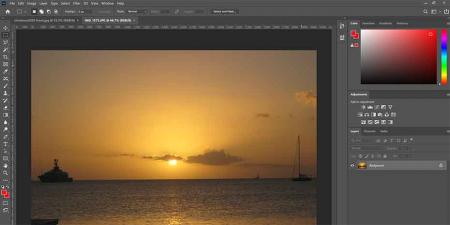
Our team of Photoshop experts has assembled a list of the 9 Best Photoshop Courses for 2023. Photoshop is the most widely used image editing software application for professional purposes. While we find Photoshop the best choice for image editing, if you're not…
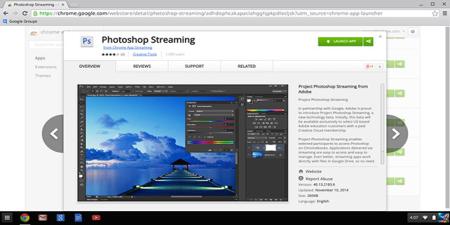
Photoshop has traditionally been installed directly on your computer, either from a disc such as a DVD, or after downloading it from Adobe’s website. Whether you are working in your studio or office, or taking a Photoshop training classes as American…
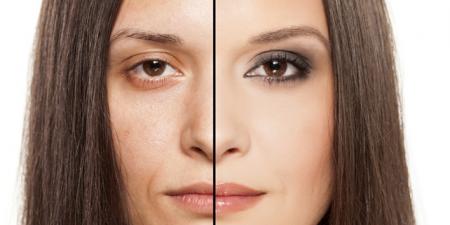
Because Photoshop is so widely used in design, marketing, creative and engineering roles, Photoshop skills are useful for professionals and students. Since it launched more than 25 years ago, Adobe Photoshop has become the undisputed king of image manipulation software. Photoshop has become one…
AGI's team of experienced instructors are also the best-selling authors of more than 20 books including Creative Cloud for Dummies, Creative Suite for Dummies, and many books published by Adobe Press, Microsoft Press, and other major publishers. Learn from experienced professionals with extensive professional and training experience, who are also practicing professionals. For Federal agencies, American Graphics Institute classes are offered under GSA contract 47QTCA19D003Y.